Purpose
The purpose of this guide is to establish a set of clear, concise, guidelines for the development of cake simulations that ensures quality and consistency across the Finale 3D simulation design team. Further, this guide aims to provide tips, tricks, resources, best practices and procedures to help streamline the cake creation process to make it as efficient and genuinely enjoyable as possible.
Cake Sim Checklist
When creating cake simulations, there are many factors to consider. Some factors are critical to producing cakes that meet the Finale standard. These factors are listed in the checklist below. For details and instructions on each checklist item, read the subsequent sections of this guide.
Objective Criteria
Generally not subject to artistic interpretation
Characteristics from project spreadsheet
- Correct Part Number
- Correct Description
- Correct Manufacturer
- Correct Size
- Correct Number of shots
Characteristics from demo video
- Accurate Prefire (+/- 0.1s)
- Accurate overall cake duration (+/- 0.5s)
- Accurate segment durations (if cake has changes in firing rate)
- Accurate angle measurements (ignoring trajectory drift)
- Accurate firing patterns (ignoring trajectory drift)
VDL characteristics
- Pure (human readable) VDL used whenever possible*
- Shots spaced evenly within each segment
- Full cake VDL uses standard syntax**
* Effect editor customization is acceptable when pure VDL alone cannot produce a sufficient simulation.
** Except where exact simulation syntax is absolutely necessary.
Subjective Criteria
Subject to some artistic interpretation
Based on demo video
- Optimal primary VDL effects (
Peony,Dahlia,Willow, etc.) - VDL adjustment terms, as needed (
Big,Sparse, etc.) - Duration adjustments, as needed (
Long,Short,DUR, etc.) - Concise VDL without redundant or superfluous terms
Checklist Item Explanations
Effects Characteristics (Spreadsheet)
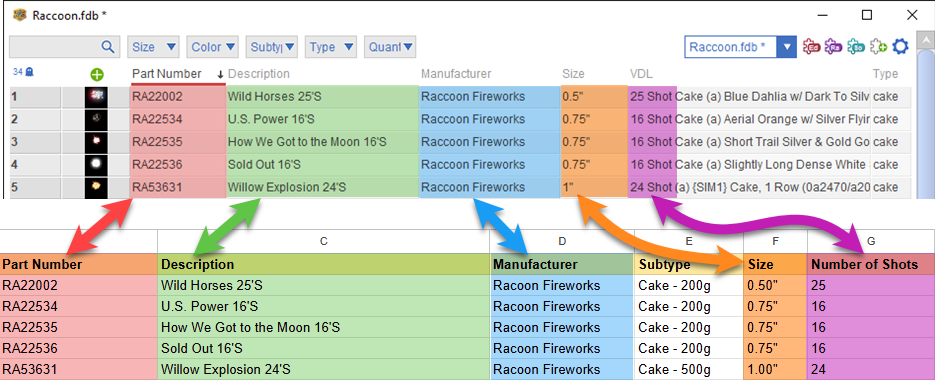
The Part Number, Description, Manufacturer, Size, and Number of shots for the completed cake must be (exactly) the same as reflected in the project spreadsheet.
Effects Characteristics (Demo Video)
Prefire
In Finale 3D, bursting aerial effects have default prefire times that are a function of their size. Due to variation in real-life effects, the default prefire times may not be sufficiently accurate. When creating a cake, measure the prefire of two to three shots in the demo video to get a good average. Aim for a prefire time that is accurate with 1/10th of a second. If the measured prefire time is different from Finale 3D's default, use the measured time when creating effects for a cake.
Overall Cake Duration
In the real world, the overall duration of a cake can vary significantly from batch to batch or even from cake to cake within the same batch. Since it's impossible to account for this variance when creating simulations, best practice is to rely on the duration reflected in the cake demo video. When measuring the overall duration of a cake, aim for accuracy within 1/2 second.
Segment Durations
If the time delay between every shot in a cake is fairly consistent (or would be consistent if there was no unintended variance in the fusing), then the shots for the entire cake can simply be spread out evenly on the Finale 3D timeline during the cake creation process. It's absolutely not necessary and not desirable for the timing of each shot to precisely match the cake demo video.
If a cake has changes in firing pace, or launches flights or sequences of effects interspersed with pauses, then it's necessary to measure the durations of the segments. When creating a cake in Finale 3D, spread the effects out evenly on the timeline based on the duration of each segment. There is no need to precisely align the timing of each shot. In other words, focus on the overall durations of the segments; don't worry about the precise time delay between shots within segments.
Firing Patterns
The firing pattern of a cake refers to its tube angles and firing order. Accurately capturing these characteristics is critical for producing a good-quality simulation.
The FinaleTools onscreen protractor is a great tool for measuring the angles of fan cakes. When setting angles in Finale 3D, use the 'Make into fan…' function to ensure the angles are symmetrical and evenly spaced.
When measuring shot angles in a demo video, focus on angles that are the result of the cake construction, and ignore angles caused by trajectory drift. For example, it's extremely common for volleys of shots from straight-up tubes to break at slightly different angles in the sky. Finale 3D naturally adds 'trajectory drift randomness' to simulate this behavior. Consequently, there is no need to add slight fan angles when creating cake simulations.
Angles
For fan cakes, use properly measured angles and spreads rather than rough estimates. The FinaleTools onscreen protractor is invaluable for measuring tube angles directly from demo videos. Be mindful, however, that demo videos are not always filmed perfectly head-on — a slightly off-angle camera perspective can make a fan appear wider or narrower than it actually is. Use good judgement when interpreting measurements from these videos, and cross-reference with any available product specifications when possible.
Objective VDL Characteristics
Pure VDL
Strongly prefer "Pure VDL" when creating cake effect simulations. Pure VDL is characterized by human readable words in the VDL column of the Finale 3D effects window. The presence of {SIM1} or long strings of characters inside curly braces like, {1KLUv/WCRALU...} indicates that an effect has been customized using the effect editor.
In some cases, pure VDL alone may not be sufficient to produce a good simulation. When this happens, it's acceptable to use the effect editor to customize an effect, but do so with good discretion. Keep customizations minimal and targeted rather than overhauling an entire effect. Customized effects are harder to maintain and adjust later, so reserve the effect editor for situations where it makes a meaningful difference in simulation quality.
The preference for pure VDL is intended to strike a balance between efficiency and visual quality. Pure VDL effects are faster to create, easier to modify, and more maintainable over time.
Shot Spacing in Segments
Shots within cake segments should be spread out evenly. See Segment durations.
Standard vs. Exact Syntax
When a selection of shots are combined to create a cake, Finale 3D will try to represent the cake using the 'standard syntax'. For example:
Here is the exact same cake as above represented using the 'exact simulation syntax':
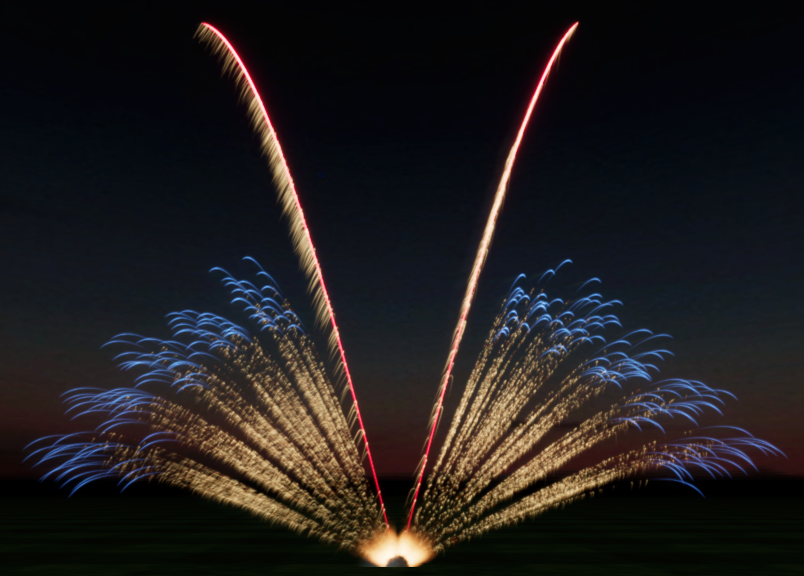
Finale 3D uses the exact simulation syntax as a fallback when a cake has unusual timing or an asymmetrical firing pattern. Since most real-world cakes can be represented by the standard syntax, the presence of the exact syntax typically indicates a problem with angle symmetry or timing. However, sometimes the exact syntax is necessary to represent the shots of a cake. One such example is a butterfly slice, as shown in the photo below. Aim to create cake simulations that use the standard syntax whenever possible.
Subjective VDL Characteristics
Optimal Primary VDL
The selection of VDL effect terms and phrases should produce a simulation that is as visually similar to the effects in the cake demo video as possible. To differentiate between effects such as Falling Leaves versus Waterfall, or Peony versus Dahlia, a keen eye and a robust knowledge of VDL is required. A good resource to learn VDL is the Glossary of VDL Effect Terms.
VDL Adjustments
From one manufacturer to another, or even from one batch to another, real-life effects exhibit infinite variation. Sometimes the default characteristics of a VDL effect are a perfect match. More often, fine tuning is required. This necessitates the use of VDL adjustment terms like Big, Small, Dense, Sparse, Ragged or Uniform to achieve the same appearance.
Duration Adjustments
Each VDL effect has a default duration that is meant to represent a good average for an effect of that type and size. However, due to variation in real-life effects, the defaults don't always produce accurate results. Adjust effect durations as needed to create effects that are visually similar to the cake demo videos.
Duration for Multi-Part Effects
For multi-part effects where you want to control the duration of each part individually, specify an explicit duration for the primary part of the effect in seconds using the DUR term, and then use modifier terms like Long or Short (with additional modifiers like Slightly or Very) to adjust the duration of the secondary part independently. For example:
This produces an effect where the red peony has a specific duration of 1.2 seconds, while the white strobing lasts noticeably longer. This technique is useful when the primary and secondary parts of a real-life effect have visibly different durations.
Effect Heights
Use default effect heights. The main exception is when effects within a cake break at clearly different heights from each other — in that case, manually adjust the height of some effects to reflect the difference. Adjusting heights to correct for defaults that are outside the real-world range is acceptable but should be extremely rare.
Concise VDL
As a best practice, try to write VDL that is free from redundant or unnecessary terms. For example, it's not necessary to write Gold Trail when Gold alone already implies a trail. It's worth noting, however, that concise VDL is more of 'nice to have' and not nearly as important as other criteria like, duration, firing pattern, and visual similarity.
Outline of Steps to Create a Cake
-
Open a cake demo video on YouTube or Vimeo and go to step 2 or download the video and go to step 3. Here are some useful resources:
- Fireworks Timer Chrome extension is essential for timing cake videos on YouTube and Vimeo, with built-in support for prefire marking and spread duration measurement (for using the Finale 3D function "Spread out evenly").
- 4K Video Downloader is an option for downloading YouTube videos.
-
Using the Fireworks Timer extension, press B to mark the first launch of the cake and go to step 5.
or
- Add the downloaded video to the timeline in your preferred video editing software.
- Trim the video so that the first launch is at 00:00.000
-
Watch the cake video and play or seek forward to the frame of the first break. Note this as the prefire time so you can use that in the simulation. If using the Fireworks Timer extension, mark this as the prefire time by pressing P.
Note: Watch multiple shots to make sure the time you choose is representative of the cake's average break time — the first shot can sometimes be a low break or outlier.
-
In Finale 3D, go to Effects → Create effect and write VDL to create a simulation for the first effect in the cake. See Glossary of VDL Effect Terms.
- Use the size provided for the cake in the project spreadsheet.
- Use the prefire time measured from the video. If using the Fireworks Timer extension, you can click the "Prefire / Lift Time" label in the timer overlay to copy the value to your clipboard for easy pasting in Finale 3D.
- Repeat step 6 to create separate simulations for each unique effect.
- Add the effects to the timeline with the first launch at 00:00.000.
- Arrange the effects on the timeline to create the sequences and firing patterns for the cake. See Finale 3D keyboard shortcuts.
-
Confirm durations of any segments and the duration of the full set of cake shots on the timeline.
- The full duration of the cake should be measured from the first launch to the last break in the demo video (unless the last shot doesn't break — then measure from first launch to last launch).
- If using the Fireworks Timer extension and you marked the correct start and prefire time points in the video, you can play or seek to the frame of the last break of the cake and then copy the "Spread Duration" value shown in the overlay to the "Spread out evenly" function in Finale 3D to match the exact duration measured in the video (Script → Sequences → Spread out evenly).
- If there is no Prefire / Lift Time value set because the cake has no breaks, mark the time of the first launch as usual, then seek to the time of the last launch and use the "Current Time" value for the "Spread out evenly" function.
- Select the effects (i.e., cake shots) on the timeline.
- Go to Effects → Combine as cake effect.
-
Use information in the project spreadsheet to populate the details for the cake.
- Part Number
- Description
- Manufacturer
- Subtype
-
Click Enter to save the cake.
- Save the cake to an FDB effect file
Resources
4K Video Downloader
Tool for downloading YouTube videos for offline analysis.
Visit Website
Fireworks Timer
Chrome extension for timing fireworks videos on YouTube or Vimeo.
Install Extension
FinaleTools
Includes an on-screen protractor and other tools for Finale 3D users.
Visit Website
VDL Glossary
Comprehensive reference for VDL effect terminology and syntax.
View Glossary
Tips & Tricks
VDL
Edit VDL in the effect editor to see changes in real-time.
Effects
It can be easy to overlook lower-level effects in cakes. Pay attention to rising and ground effects like mines and rising tails.
YouTube / Vimeo Keyboard Shortcuts
Finale 3D Keyboard Shortcuts
Single Shot Sim Best Practices
Not every 30mm red comet looks the same.
When creating single shot effects like comets, mines, or shells, take extra care to ensure that the effect sim represents the actual product accurately, even if doing so requires creating a custom sim using the Effect Editor.
Use VDL when possible, but don't hesitate to use the Effect Editor to fine-tune single shot effects to match the desired appearance when VDL is not enough — using the Effect Editor is more acceptable for single shots than for cakes.
Comets and Mines
For single shot effects like comets and mines, use the Fireworks Timer extension to measure the burn time of the stars and set the duration accordingly. Pay attention to brightness and color and ensure that the effect sim matches the visual appearance, using adjustment terms as necessary (Bright, Dim, etc.).
For mines, pay attention to the number of stars and their arrangement. Some mines have many stars and some mines have few. Use VDL adjustment terms like Sparse or Dense with size adjustment terms like Small or Big to accurately represent the mine's star arrangement. If the mine has other distinct features that can't be replicated with VDL, use the Effect Editor to create a custom effect sim that accurately represents the mine's behavior and appearance.
Single Shot Shells
For single shot shells, use the Fireworks Timer extension to measure the lift time and star burn duration(s). Use VDL to represent the shell's behavior and appearance, but if necessary, use the Effect Editor to fine-tune the appearance.
In Summary
When creating single shot effects, strive for accuracy and realism in your sims. Use VDL when possible, but don't hesitate to use the Effect Editor to create custom effects that accurately represent the product's behavior and appearance. This helps ensure that our sims are of high quality and meet "Finale Verified" standards.